
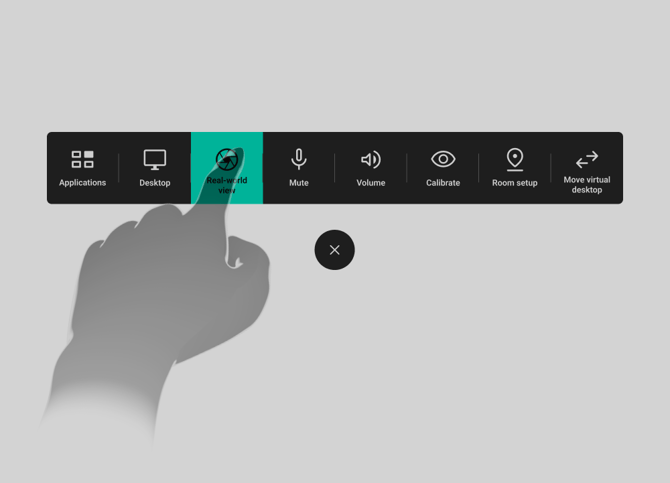
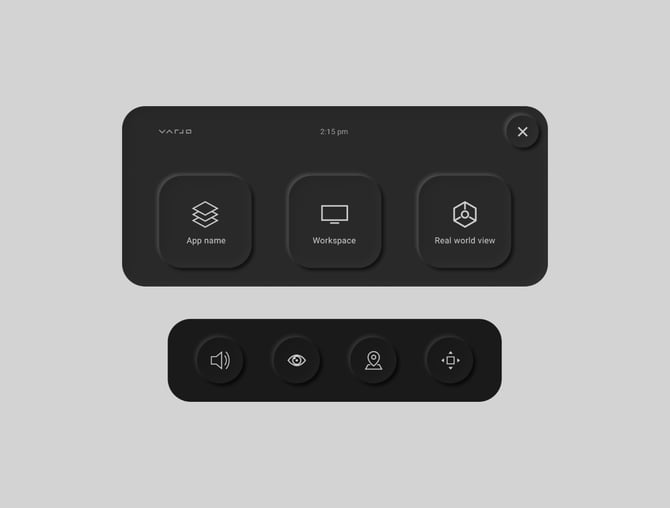
The Menu contains shortcuts for frequently used features of your headset. You can open the Menu at any time while using the headset. There are a few different ways to use the Menu.
You can use your hands, headset, or controllers to interact with the Menu.
Interacting with the Menu
XR-4 Series
|
Interaction |
Hands1 |
Controller |
Headset |
Varjo Base |
|
Opening the Menu |
Tap the touch area on your headset. |
Press the Menu button on the controller. |
Tap the touch area on your headset. |
In the Toolbar, select More > Menu. |
|
Select |
Press the items on the Menu with your index finger. |
Point with the controller and select using the trigger button. |
Point with your head and tap once on the touch area to select. |
|
1 If you want to use your hands, make sure that hand tracking is enabled in the Varjo Base settings.
Additionally, when using hands, your controllers can remain powered on, but do not move them during hand interactions. Moving the controllers might affect tracking accuracy.
XR-3, VR-3, and Varjo Aero
|
Interaction |
Hands |
Controller |
Headset |
Varjo Base |
|
Opening the Menu |
|
|
Press the Menu button. |
In the Tools menu, select the Menu button. |
|
Select |
Press the items on the Menu with your finger. |
Point with the controller and select. |
Point with your head and use the Action button to select. |
|
XR-1 Developer Edition, VR-2 Pro, VR-2, and VR-1
|
Interaction |
Controller |
Headset |
Varjo Base |
|
Opening the Menu |
|
Press the System button. |
Select the System button in the Tools menu. |
|
Select |
Point with the controller and select. |
Point with your head and use the Application button to select. |
|