
The chroma key feature allows you to control where a viewer sees virtual content in the mixed reality environment. When chroma key is in use, a predefined color in your physical environment is replaced with virtual content.
Preparing your environment for chroma key
Chroma key works best in good, soft lighting. Make sure the chroma key surface is evenly lit and avoid reflective objects in your environment, as the chroma key background can become visible in these places. Try to use neutral-colored lights with identical color temperatures.
Depending on your intended use, we recommend that you choose a chroma key color that is clearly distinct from human skin tones. Green and blue are typically good choices. Chroma keying requires a bright color tone as its target, and therefore black, white, or gray will not work.
Chroma key can be used either as a background for the scene or on smaller individual surfaces. When using a colored canvas as backdrop, make sure not to leave wrinkles, creases, or shadows on the surface. It helps to leave some distance between foreground elements and the background to avoid shadows falling on the canvas. When placing smaller individual elements into the scene, ensure that they are all the same color and lit similarly.
See our Developer Portal for more technical information on how to set up your environment for use with chroma key.
Chroma key settings
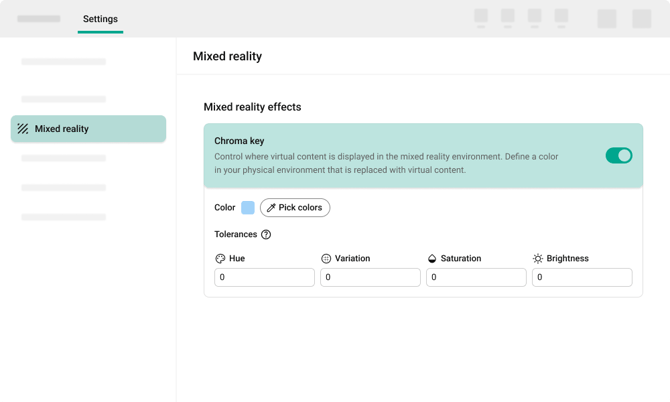
In Varjo Base, the chroma key feature is found in Settings > Mixed reality > Mixed reality effects > Chroma key. If you are using Varjo Base version 4.10.2 or older, the feature is found in the System tab.
You might see one of the following messages:
| Configuration locked by another application. | Another application is using the chroma key configuration. All chroma key settings are disabled. The settings will be released once the application is closed or is no longer using the configuration. |
| Chroma key set by application. Sampling a new color will erase the current chroma key. | Another application has set the current chroma key configuration. Editing the configuration will replace the current one. |
Picking a chroma key color
To pick a chroma key color:
-
Navigate to Settings > Mixed reality > Mixed reality effects > Chroma key.
-
Select Pick colors.
- Select Pick colors in headset > Start.
- While holding the headset, point at your target color.
- Press the space bar or tap the Action button on your headset.
The color you pick is replaced with the preview color in the headset view.
You can preview the current chroma key configuration using the Preview chroma key setting. The chroma key mask is visualized using the color you select in the drop-down list.

We recommend you pick colors from multiple points in the environment to account for differences in lighting and surface color. The color picker is additive: each selection increases the color range in use. Select Stop to quit the color picker.
Reset will return the original color values. You can also load a color configuration or save the current one.
Adjusting the color tolerances
You can adjust your chroma key color tolerances in the Pick colors overlay or in the Chroma key settings.
The following tolerances can be adjusted:
|
Hue |
Adjusts the color tone. |
|
Hue variation |
Defines how much color variation is tolerated. |
|
Saturation |
Adjusts the tolerance for color intensity, determining how vivid or muted colors can be.
|
|
Brightness |
Adjusts the tolerance for lightness and darkness, controlling how bright or dark a color can be.
|
If you adjusted the tolerances in the overlay, accept the current chroma key color and return to the Mixed reality tab by selecting Done.
Revert to the previous configuration by selecting Cancel or closing the settings menu.