
Real-world lighting simulation allows you to simulate different times of day and weather conditions by applying color grading that alters the video pass-through image lighting.
This feature is available from Varjo Base version 4.17 onwards and requires a Varjo Base Pro license. It has also been available through Varjo Command-line interface since Varjo Base 4.15.
The available presets are:
- Night
- Cloudy
- Sunset
- Sunny
You can enable the setting under Settings > Mixed reality > Mixed reality effects > Real-world lighting simulation.
After you enable Real-world lighting simulation and select your preset, you can use the slider to adjust the intensity.
For best results, use manual camera settings that match your real-world lighting. With automatic settings, the effect’s intensity changes as you look between dark and bright areas. Setting exposure and ISO manually keeps the effect consistent.
Night mode in Varjo Base 4.13–4.16
In these Varjo Base versions, the feature was called Night mode and offered only a nighttime effect. Night mode transforms your real-world elements in mixed reality environment to resemble nighttime. It can be used to simulate low-light conditions in brightly lit environments. 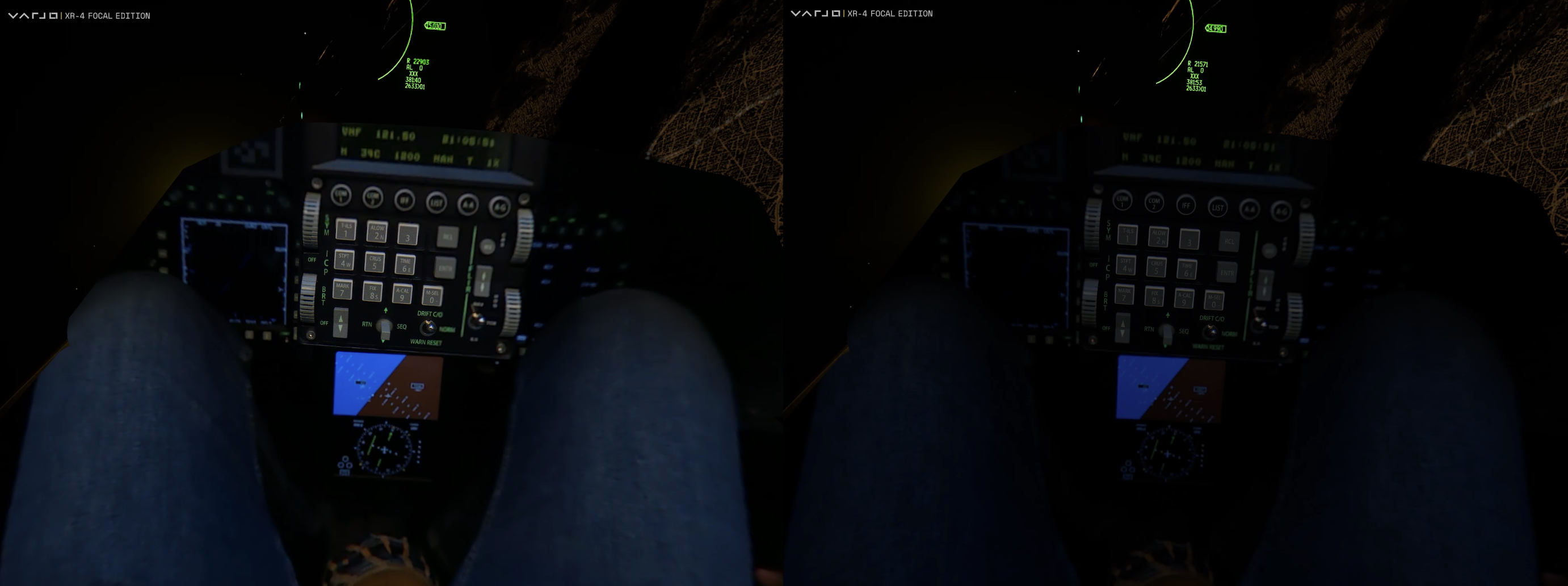 Headset view before and after enabling Night mode.
Enable Night mode in Settings > Mixed reality > Mixed reality effects > Night mode.
After you enable Night mode, you can adjust the darkness level with the Intensity setting.
We recommend using manual camera settings and adjusting the Exposure and ISO values when using Night mode. This allows your night to look more consistent and not change intensity.