
Before you start using your headset, you can check whether your room is suitable for Varjo inside-out tracking.
Checking your environment
- Open Varjo Base.
- Power on your headset.
- Make sure Varjo inside-out tracking is selected as the tracking method.
- In the Toolbar, select More > Analytics window.
- In the Analytics window, select Performance.
- Under ‘Headset tracking environment evaluation’, select Show.
- Wear the headset or hold the headset in your hands.
Note that when evaluating your environment with the headset on, you need to have Virtual desktop open to see the results. - Check the result under 'Evaluation' while slowly pointing the headset in all directions you will naturally look during use. For example, the screen, walls, and ceiling.
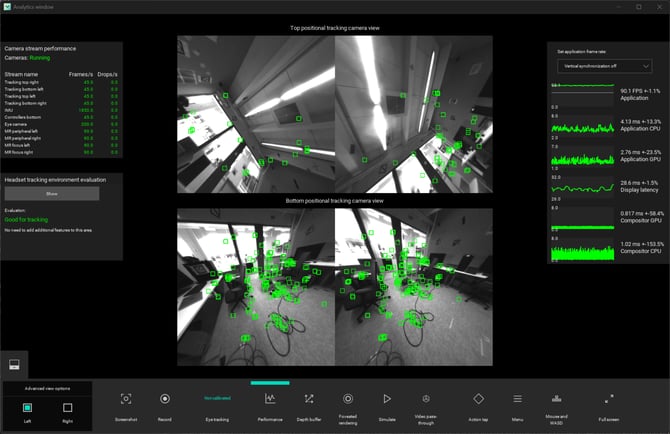
Evaluation results
The table below provides a brief explanation of your result, the typical causes, and ways to improve tracking.
| Result |
Description |
Typical causes |
How to improve |
|
Your current view is optimal for inside-out tracking. |
|
|
|
|
Average for tracking (Yellow) |
Tracking is degraded but not yet lost. |
|
|
|
Bad for tracking (Red) |
|
Once you have improved your environment, run Room Setup again. |
For more information about how to improve your environment for inside-out tracking, see Preparing your environment.
Choosing Varjo inside-out tracking as the headset tracking method
- Open Varjo Base.
- Navigate to Settings > System > Headset tracking.
- Select Varjo inside-out tracking.